Subcontractor guide to Findable Projects
Overview
Use this guide when you have been invited to deliver O&M, FDV, product, warranty, certificate, drawing, or handover documentation in Findable Projects.
Findable Projects gives the project team one place to request files, receive uploads, review submissions, and keep the final building archive current. Your job is simple: open the correct project, check what has been requested, upload the right files, and follow any review comments.
This does not cost you anything. You do not need a licence or your own subscription. Access is free for you as the documentation supplier, and you only use it for as long as the project lasts.
Before you start
- Use the email address that received the Findable invitation.
- Prepare files with clear names, for example
Ventilation_unit_AHU-03_manual.pdf. - Findable can be shown in several languages. This guide uses the product names shown to subcontractors.
- Avoid special characters and spaces in file names.
- Upload the latest approved version unless the requirement asks for draft material.
- Keep source documents available in case the project team asks for more information.
1. Open the correct project or building
- Open the invitation link from the project team, or sign in at app.findable.ai.
- If you belong to more than one organization, choose the organization named in the invitation.
- Open the relevant building or project from the left-hand navigation.
- Check the project name, address, phase, and discipline before uploading anything.
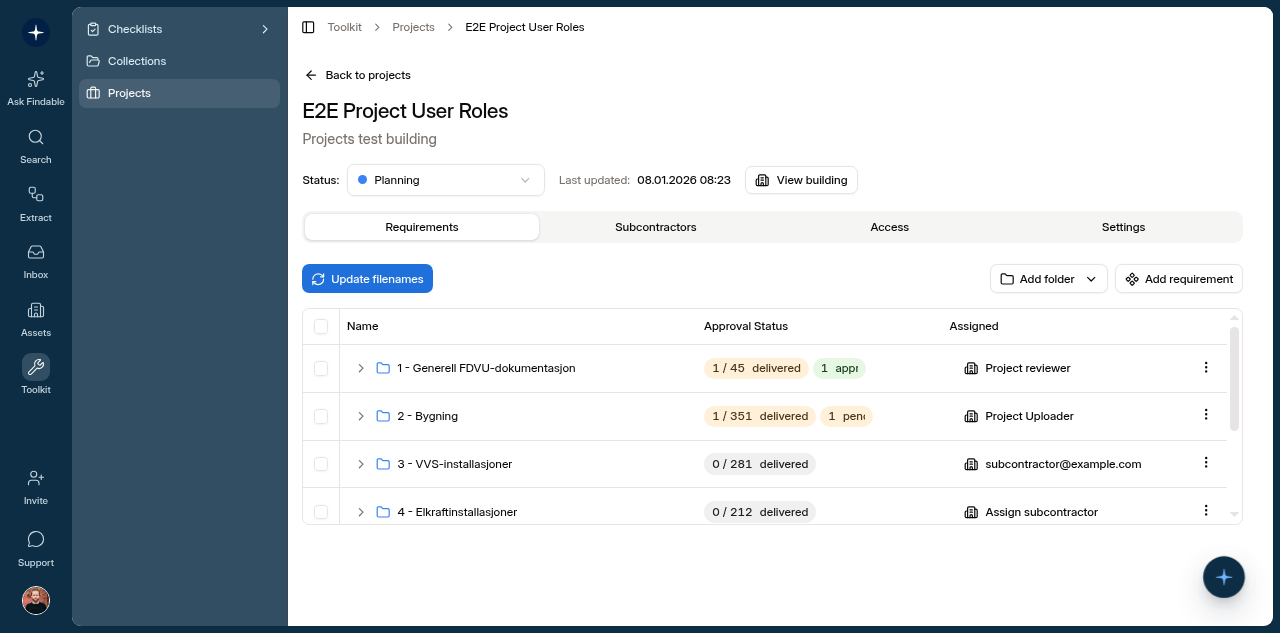
If you cannot see the project, check that you are signed in with the same email address that received the invitation. If it still does not appear, ask the project team to confirm that you have been added to the project.
2. Find what has been requested
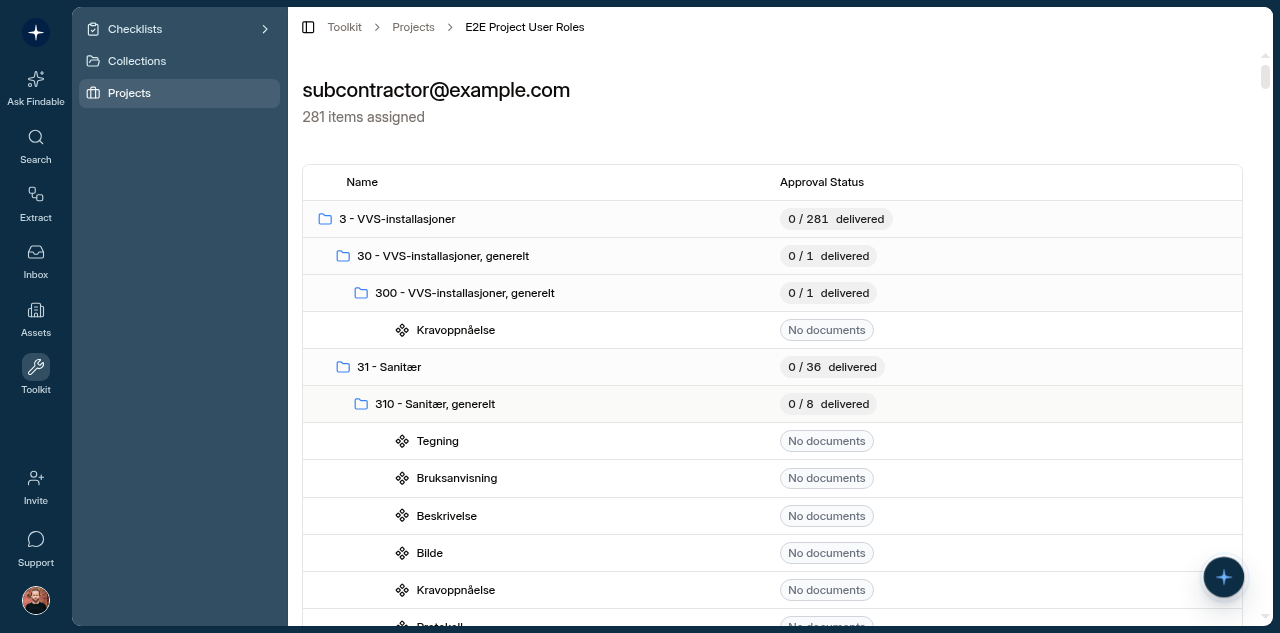
Inside the project, look for the requirement list in the Delivery requirements tab. Requirements are usually grouped by package, discipline, system, or delivery milestone.
For each requirement, check:
- What document is needed, such as O&M manual, declaration of performance, product data sheet, as-built drawing, certificate, warranty, inspection report, or commissioning record.
- Which system, product, room, area, or building part it belongs to.
- Required format, if the project team has specified PDF, XLSX, DWG, ZIP, image files, or another format.
- The status badges, so you can see what is outstanding, delivered, approved, or declined.
- Comments from the reviewer, especially if an earlier upload was declined or needs more information.
Do not guess the category if the requirement is unclear. Add a short comment with the upload or ask the project contact before submitting.
3. Upload FDV and handover documentation
- Open the requirement you want to answer.
- Click Upload documents for that requirement.
- In the Documents tab, click Upload files.
- Select the file or files you want to deliver. The upload starts after you select them.
- Wait for the upload to finish, then return to Delivery requirements and check that the requirement is no longer marked Outstanding.
Use one file per requirement when possible. If a single package contains several documents, keep the folder or ZIP structure easy to understand. If the package needs context, make that clear in the file or ZIP name.
File types and size
Follow the format stated in the requirement or in the invitation from the project team. If the delivery package is large, split it into several clearly named ZIP files instead of one large file.
Mobile upload is supported when your phone can open the invite link and access the files or photos you want to send. You can take photos of certificates, labels, or signs on site, but check that the image is readable before uploading it. For large ZIP files or folder-based handovers, use a PC or Mac.
Good file names help the project team review faster:
Sprinkler_pump_warranty_2026.pdfAHU-03_maintenance_manual.pdfEmergency_lighting_commissioning_report_level-2.pdfProduct_declaration_flooring_type-B.pdf
Avoid names like final.pdf, FDV.zip, scan001.pdf, or new version. They slow down review and make it harder to find the document later.
4. What happens after submission
After you submit documentation, the project team reviews it in Findable.
For subcontractors, Findable shows delivery and review status with these labels:
- Outstanding: The requirement still needs a file.
- Delivered: A file has been received.
- Approved: The file has been accepted and can be used in the project and building archive.
- Declined: The project team needs a corrected file, a missing attachment, or more information.
If a file is declined, open the note from the project owner before uploading a new version. Common reasons include missing product reference, wrong building area, outdated revision, unreadable scan, incomplete certificate, or a document that does not match the requested system.
Review tip
If you replace a file, mention what changed. A note such as “Updated with signed commissioning page” is more useful than “new upload”.
5. Check your delivery before the deadline
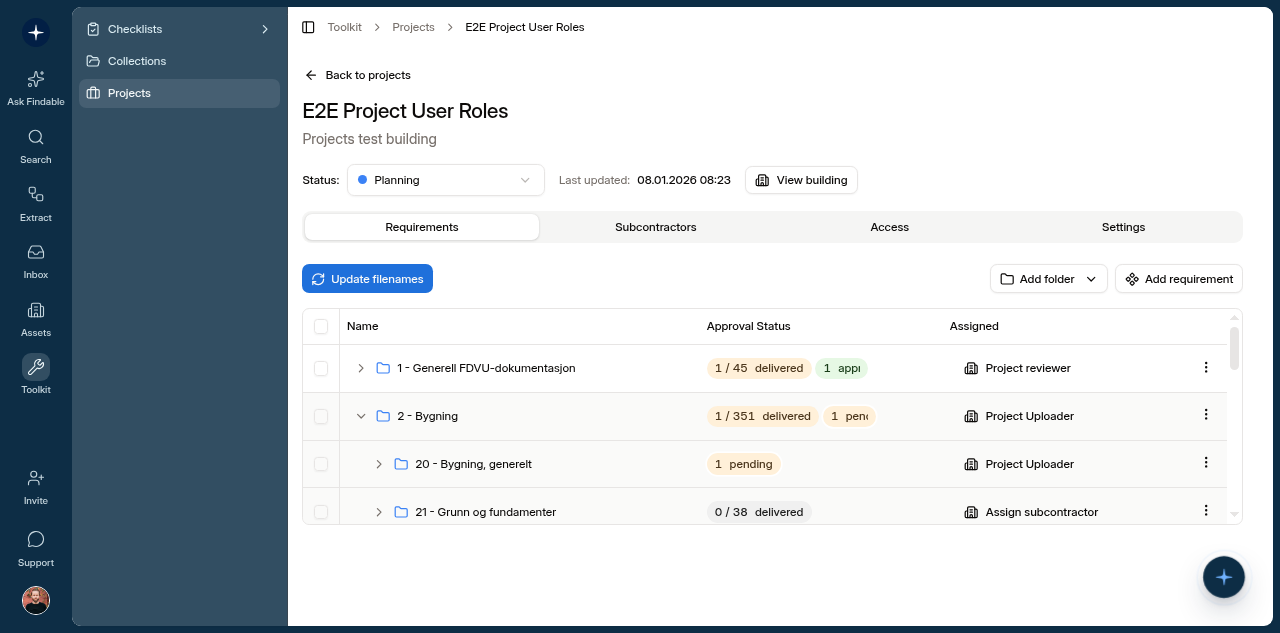
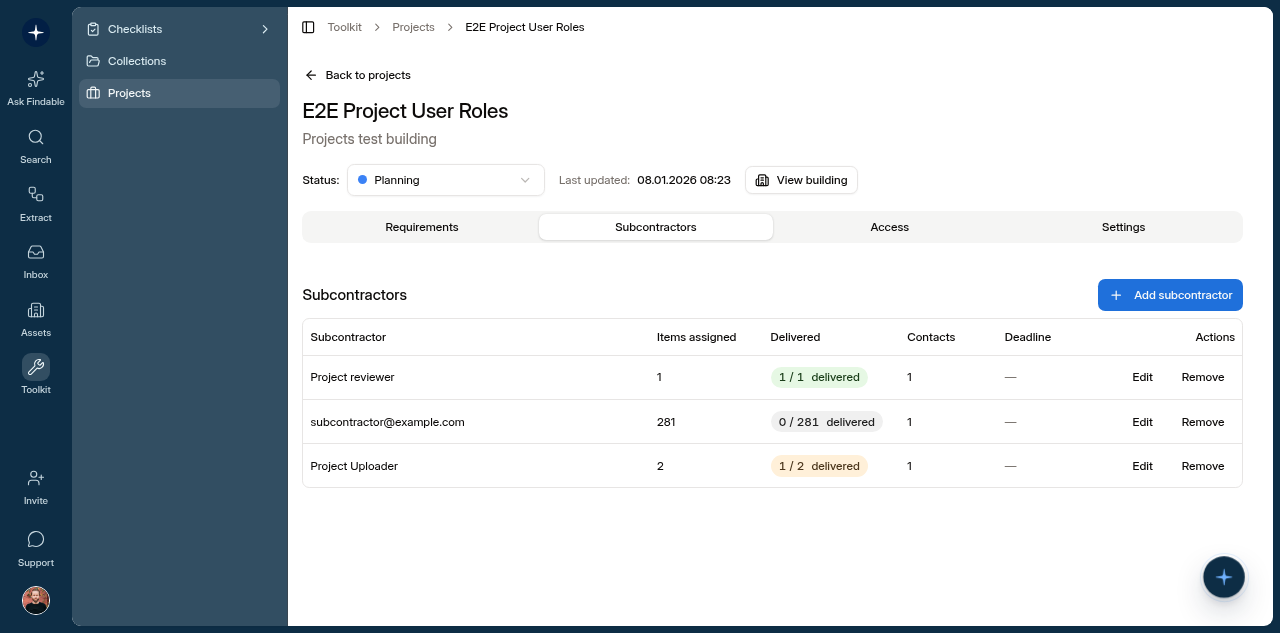
The subcontractor view shows what the project team has requested, which files you have delivered, and which requirements still need follow-up. Use the requirement list and the Documents tab to check that your delivery is complete.
Before the deadline, review:
- Requirements still marked Outstanding.
- Files marked Declined that need a new upload.
- Comments from the project team.
- File names and versions, especially if you uploaded several documents for the same system.
If anything is unclear, add a short comment to the delivery or contact the project team before the deadline. One extra clarification is better than having the delivery declined later.
6. Quick checklist before you finish
- You are in the correct organization, project, and building.
- Every open requirement assigned to you has either an upload or a clear comment.
- File names identify the product, system, document type, and version where relevant.
- Declined files have been corrected and uploaded again.
- The project contact knows if anything is missing, delayed, or outside your scope.
Need help?
If you cannot access the project, or you are unsure what a requirement means, contact the project manager who invited you. Their contact details are in the invitation email.
If the issue is technical, use the chat widget in Findable or email support@findable.ai.
Work at a company that needs control over building documentation? Learn more about Findable.