Overview
Use this guide if you rent space in a building where the landlord or property manager uses Findable, and you have been invited as a tenant.
As a tenant, you use Findable for three things:
- Reporting when something isn’t working in your premises, and following it until it’s fixed.
- Finding documents your landlord has shared with you, such as O&M documentation and drawings.
- Uploading your own documentation, such as service reports for equipment you are responsible for.
You only see what concerns you. Other tenants can’t see your reports or files, and you can’t see theirs.
Before you start
- Use the email address that received the invitation.
- This guide uses the English names of tabs and buttons, and shows the new Findable layout.
- What you see depends on the access your landlord has given you. If something is missing, ask your contact at the landlord.
1. Sign in
- Open the invitation from Findable in your email and follow the link.
- Complete the sign-up. If you already have an account, sign in as usual at app.findable.ai.
- You land straight in the building. At the top of the page you see the Tasks and Collections tabs.
Tip: Add the page to your phone’s home screen, so it’s at hand when you walk around the premises and spot something that needs fixing.
2. Report something that isn’t working
- Go to the Tasks tab.
- Click + New and choose Deviation.
- Write a short title that says what’s wrong and where, for example “Loose ceiling tile, 6th floor, meeting room 608”.
- Describe the problem under Description if the title isn’t enough.
- Attach a photo under Images & Files. A photo makes the fault much easier to find and fix.
- Click Save.
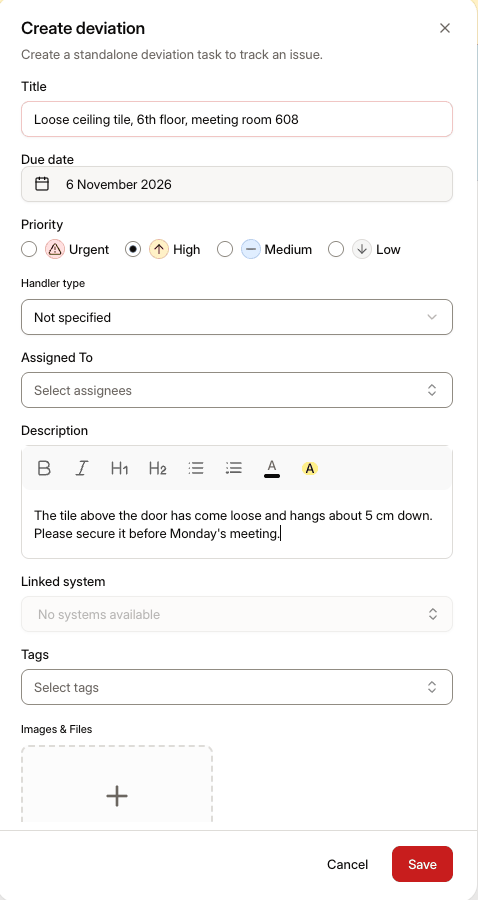
You don’t need to choose anyone under Assigned To. The report goes automatically to the person your landlord has set up to receive tenant reports. You can leave Due date and Priority as they are, or change them if the matter is urgent.
3. Follow what you’ve reported
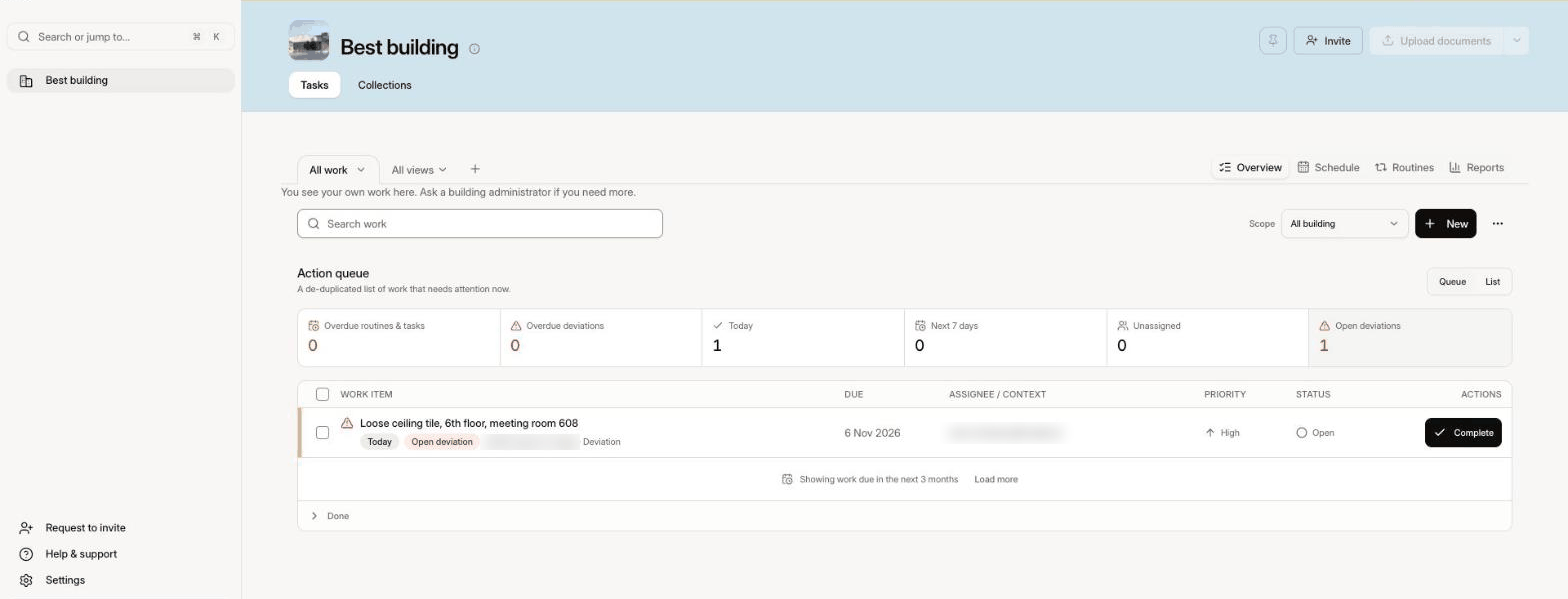
Under Tasks you see everything you have reported, with its status. Open a report to see what has happened, or to add a comment or another photo.
Finished items are under Done at the bottom of the list.
4. Find your documents
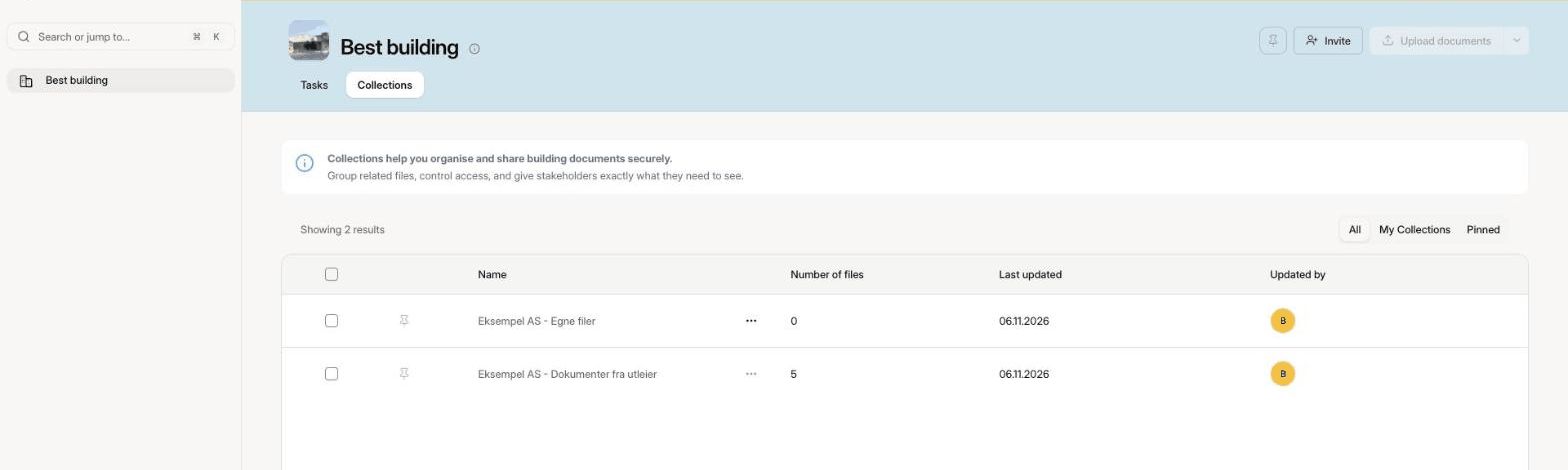
Go to the Collections tab. A collection is a folder of documents your landlord has chosen to share with you. Usually you have two:
- Documents from your landlord, such as O&M documentation, drawings, and operating instructions for your premises. You can read and download these, but not change them.
- Your own files, where you add your own documentation.
Your landlord names the collections, so the names may look slightly different for you.
5. Upload and delete your own files
- Open the collection for your own files.
- Click Upload and choose the files.
Give files clear names, for example Service_report_ventilation_2026-11.pdf, so they are easy to find later.
To delete a file you added yourself: select it in the list and click Archive. You can’t delete files from your landlord.
Need help?
Click Help & support at the bottom left in Findable to reach us directly. You can also email support@findable.ai.
Questions about the premises, your lease, or who should have access go to your contact at the landlord.
Do you manage buildings yourself and want the same overview? Learn more about Findable.